
The Scheduled Exports page (Utility Settings > Scheduled Exports) provides a centralized, paginated view of all data exports that have been set up for recurring delivery. NOTE: additional fees are required to enable the Scheduled Exports feature.
Each Scheduled Export entry displays key details as described in the table below. Use the Search field above the list of exports to quickly jump to the export of interest.
| Field | Definition |
| Name | The name of the Export (up to 45 characters). |
| Export Type | The type of Export (Billing or Events). |
| Frequency | How often the Export is sent (Hourly, Weekly, or Monthly). |
| Delivered To | The destination FTP server. |
| Status | Active (enabled) or Paused (on hold). |
| Owner | Name of the entity that configured the export. |
Managing Exports
Select the three-dot menu (⋮) located to the far-right side of an export line to view options for managing the export.
- Edit – Modify the export parameters. (Unavailable to utilities at this time.)
- Pause/Activate – Toggle that suspends or activates the export. (Unavailable to utilities at this time.)
- Delete – Remove the export. (Unavailable to utilities at this time.)
- History – Display previous exports, the date and time of their delivery, the Status of each delivery, and each delivery path, e.g. the folder the export was sent to.
- Change Log – Displays an audit log of export configuration revisions.

Viewing Export Configuration
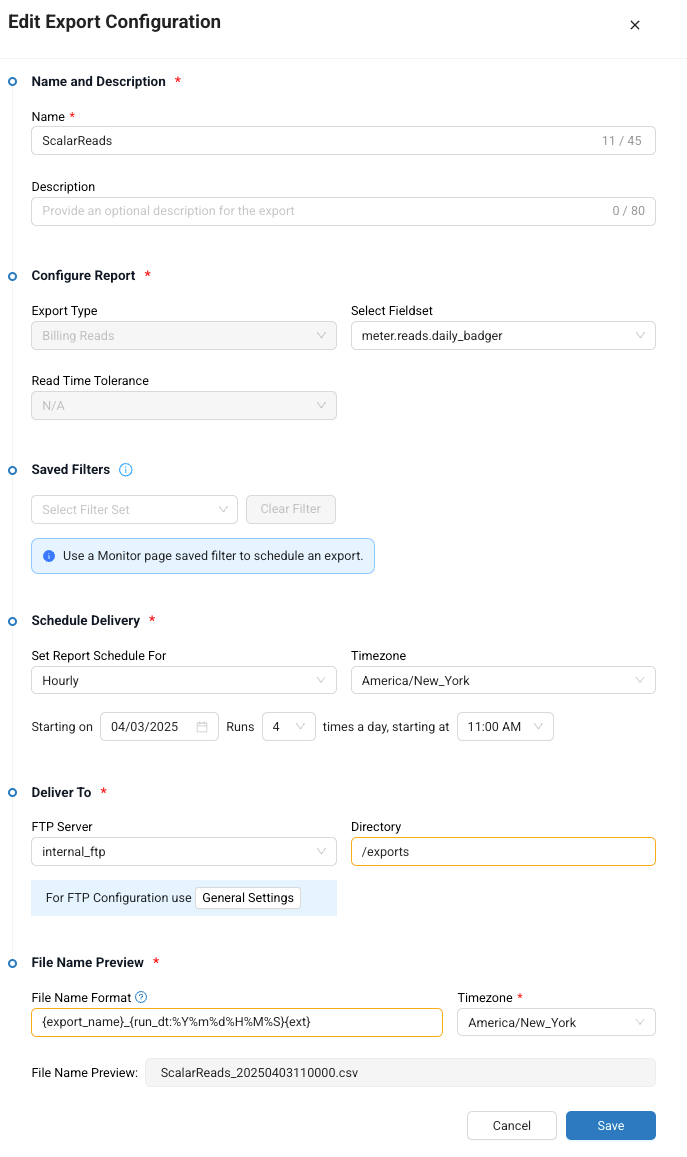
Clicking an export in the name column opens a drawer that lets you view the export’s configuration. In the example below, an export named ScalarReads is scheduled for delivery to a Badger Meter-managed FTP server folder named “exports.” Click the x in the upper right corner to close the drawer.


Pagination Controls
Use the Pagination Controls at the bottom of the list to:
- Jump to the first, last, or next group of entries
- Choose how many Scheduled Exports to display per page (10, 20, 50 or 100)


