
As part of our ongoing efforts to enhance BEACON security, we are migrating all BEACON Web Service API workflows from Basic Authentication to API Client credentials. All BEACON API users are urged to test and implement API Client credentials.
API clients isolate client access from user access. When you create an API client, you’re given a client ID and a client secret. You use these credentials to generate a token when needed, and then supply the generated token with each API request. The client secret is randomly generated when you create the API client or rotate the client’s secret. Tokens are open-standard (PFC 7519) JSON Web Tokens (JWTs) – a compact URL-safe means of representing claims to be transferred between two parties: read more.
API clients can be controlled granularly by way of client permissions. This lets you limit potential threats typically associated with credentials being accidentally exposed. Utilities can create different API clients for different tasks, further increasing isolation and enhancing security.
With this change, Single Sign-On (SSO) users who have the appropriate permissions can now make use of BEACON APIs, further extending secure access options.
This change applies to all BEACON instances and all BEACON APIs, including the Import API, EDS v1 and v2, and WAVE APIs.
Create an API client.
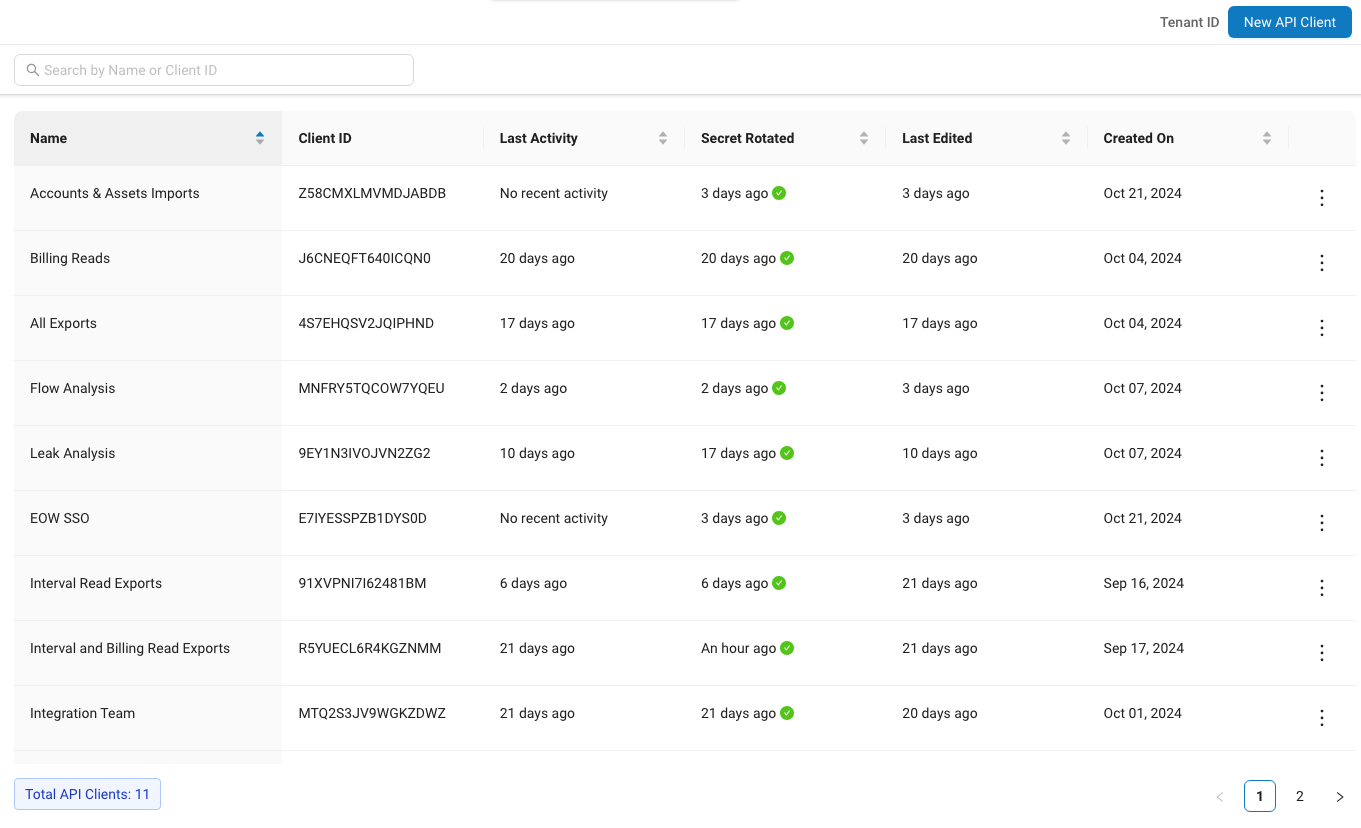
- Navigate to the Users > API Clients page.
 Up to 15 API Clients can be created.Click the three vertical dots next to any API Client to open a pop-up menu that lets you edit, delete, and rotate that client’s secret.
- Click New API Client on the horizontal toolbar in the upper-right.
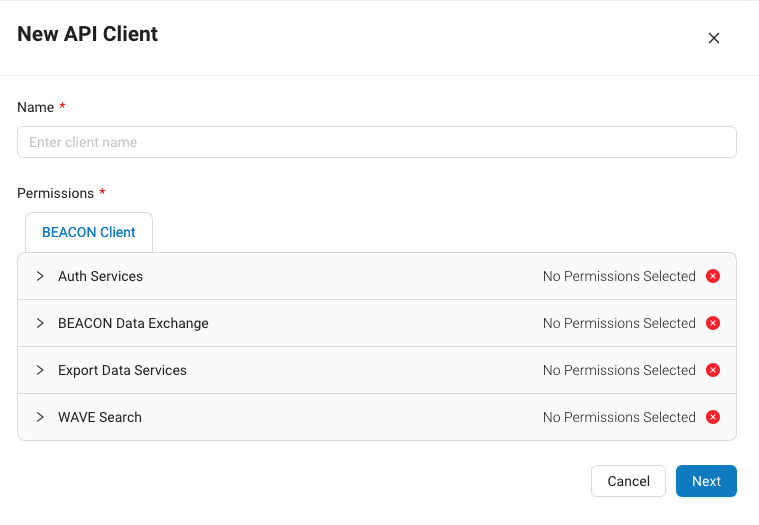
 This opens the New API Client drawer.
 Auth Services – Rotate the API Client Secret and toggle EyeOnWater SSO portal access.
BEACON Data Exchange – Control Data Exchange import permissions.
Export Data Services – Control data export permissions. - Create a meaningful name to track the purpose of the client and enter it in the Name field. This step is required.
- Use the BEACON Client drop-down menus to select permissions necessary for this client’s operation.
 In the example above, all of the necessary permissions for performing system sync imports are enabled.
 - Click Next. The client ID and client secret values are shown.

- Click the copy icon (circled in blue in the example below) to copy to your computer’s clipboard both the client ID and client Secret. Store them in a secure location for future reference. IMPORT: The client secret is only shown once, so if lost, the secret must be rotated for that client to use its credentials again.

- Call our Oauth2 token endpoint using the client credentials grant.
POST https://wave.beaconama.net/api/v3/client
- Supply the client ID and client Secret in the Auth header using Basic Auth.
- Supply grant_type as a form parameter (application/x-www-form-urlencoded) with the value “client_credentials”.
The JSON response of a successful call is structured like this (status code 200):




{ |
-
- The token returned is encoded in base64.
- Token expiration is currently set to one hour.NOTE: this is subject to change in the future depending on security needs. As a result, we recommend API workflows that parse the expires_in value (specified as the number of seconds until expiration as a string) from the token response, and check if the token is about to expire before every subsequent request that uses the token.
- If the token is approaching the timeout value (within about a minute), another token should be fetched using the same mechanism above.
- No refresh tokens are returned with the client_credentials grant.
- Long-running API workflow scripts must keep the client credentials available during runtime to supply to the token endpoint to get another token after expiration. Supply this token in API requests in the Auth header using Bearer auth.
Authorization: Bearer eyJ...Use the tenant_id in the URL path if required by the endpoint. - We recommend rotating client credentials every 90 days.
- On the API Clients page, there is an indicator in the “Secret Rotated” column that will turn into a warning when the client credentials are more than 90 days old.
- To rotate a secret, click the three dots on the right side of the client row and hit Rotate Secret. WARNING: This will invalidate the existing client’s credentials and generate a new secret.
- Existing API workflows using a client must be updated to use the new credentials after rotation, otherwise future requests to get an access token will fail.
- API Client management can be controlled with user permissions.
BEACON> API Client Configuration > API Clients > View, Create, Edit, Delete, Rotate Secret
Advanced
You can have a client rotate its own secret or another client’s secret using an API request if there is desire to periodically rotate the secret automatically.
To do this, have a client call the following API:
POST https://wave.beaconama.net/api/v3/iam/<tenant_id>/clients/<client_id>/rotate-secret
The client must have the Auth Services > API Clients > Rotate Secret permission enabled to be able to do this (see the example below).

JSON Response (for status code 200):
{

    "secret": "yOA5pVzLokzQgkmN2HcXCe0FHaW3JWGiffSKFGsbDtWzj6fmvOAbx3kiZfYOFndJ"

}
This will invalidate the existing client’s credentials, so the new secret must be used for subsequent requests for that client to be able to get another token.
References
RFC 6750: The OAuth 2.0 Authorization Framework: Bearer Token Usage
Section 2.1 of this specification describes how to use bearer tokens in HTTP requests to access OAuth 2.0 protected resources. Any party in possession of a bearer token (a “bearer”) can use it to get access to the associated resources (without demonstrating possession of a cryptographic key). To prevent misuse, bearer tokens need to be protected from disclosure in storage and in transport.


