
The Geo Data Review page lets you validate the geo-coordinates – that is, the latitudes and longitudes – of service point locations.
Geo-coordinates are captured in one of two ways:
- By including latitude and longitude values in the Location_Latitude and Location_Longitude and/or Service_Point_Latitude and Service_Point_Longitude columns of a Data Exchange file
- Or by letting BEACON use the Location_Address, Location_State and one or both of Location_City and Location_Zip in a Data Exchange file to get the coordinates from a Google Maps API.
The validation process looks for and counts:
- Latitude and longitude values that equal 0, -0
- Invalid or out-of-bounds latitudes and longitudes (values that fall outside of a boundary defined by a GeoJSON file or by a US State/Canadian Province overlay)
- Services that are missing location data such as State/Province and other details
- The total number of geo-coordinates reviewed.
Set a Validation Boundary
Geo Data Review lets you use GeoJSON files to define the boundary of the area serviced by your utility. If you do not have a GeoJSON file, a Boundary State drop-down menu lets you select one or more predefined US State/Canadian boundary maps*.
* Boundary maps for other countries are not yet available.
To upload one or more GeoJSON file(s), do the following:
- From the Geo Data Review page, click GeoJSON.

- Click Upload.
- Select or drag and drop files onto the uploader.

NOTE: GeoJSON files must be no larger than 5MB, and the total available storage for GeoJSON files is 15MB.
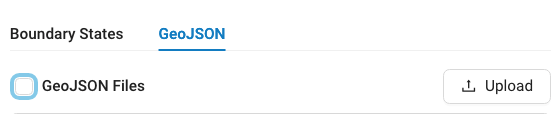
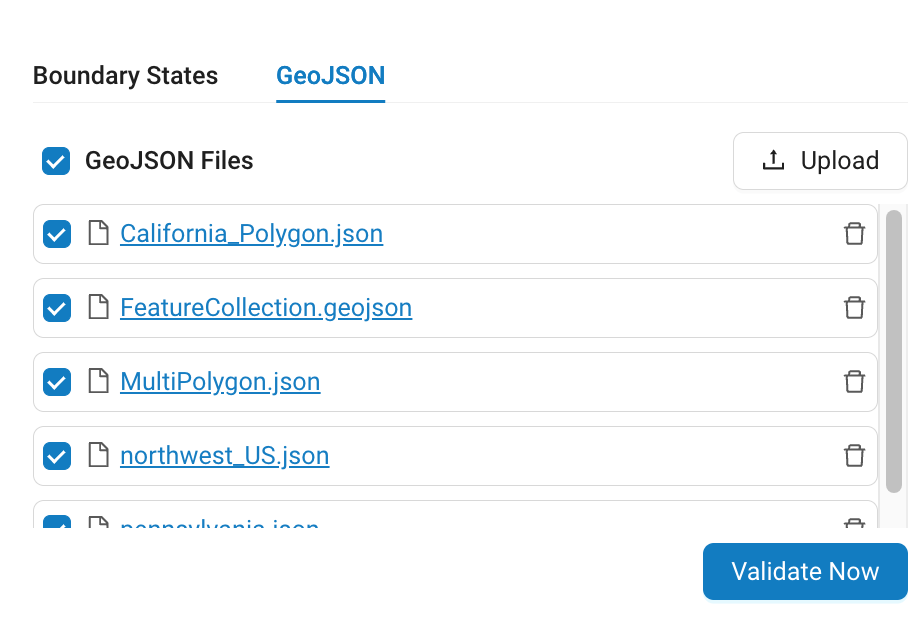
- When the upload is complete, click GeoJSON Files to select all of the files or check the boxes next to each file you want to run validation against.

In the example above, a GeoJSON file labeled delaware.geojson has been selected. Click any of the Trash icons on the right to delete the corresponding file.NOTE: When the system detects file-level errors, say because the file is not a valid GeoJSON file or the data is formatted incorrectly, the system will display the rejected files along with a message that includes information on how to proceed.
Supported Geographic Data Structures
Structure Name Sample Structure Polygon { "type": "Polygon", "coordinates": [ [ [-124.409591, 32.534156], [-114.131211, 32.718652], [-114.131211, 42.009518], [-124.409591, 42.000325], [-124.409591, 32.534156] ] ] } }MultiPolygon { "type": "MultiPolygon", "coordinates": [ [ [ [ -47.900390625, -14.944784875088372 ], [ -51.591796875, -19.91138351415555 ], [ -41.11083984375, -21.309846141087192 ], [ -43.39599609375, -15.390135715305204 ], [ -47.900390625, -14.944784875088372 ] ], [ [ -46.6259765625, -17.14079039331664 ], [ -47.548828125, -16.804541076383455 ], [ -46.23046874999999, -16.699340234594537 ], [ -45.3515625, -19.31114335506464 ], [ -46.6259765625, -17.14079039331664 ] ], [ [ -44.40673828125, -18.375379094031825 ], [ -44.4287109375, -20.097206227083888 ], [ -42.9345703125, -18.979025953255267 ], [ -43.52783203125, -17.602139123350838 ], [ -44.40673828125, -18.375379094031825 ] ] ] ] }Geometry Collection { "type": "GeometryCollection", "geometries": [ { "type": "Polygon", "coordinates": [ [ [100.0, 0.0], [101.0, 0.0], [101.0, 1.0], [100.0, 1.0], [100.0, 0.0] ] ] }, { "type": "MultiPolygon", "coordinates": [ [ [ [102.0, 2.0], [103.0, 2.0], [103.0, 3.0], [102.0, 3.0], [102.0, 2.0] ] ], [ [ [100.0, 0.0], [101.0, 0.0], [101.0, 1.0], [100.0, 1.0], [100.0, 0.0] ] ] ] } ] }FeatureCollection { "type": "FeatureCollection", "features": [ { "type": "Feature", "geometry": { "type": "Polygon", "coordinates": [ [ [-89.57, 48.0], [-83.0, 48.0], [-83.0, 36.0], [-89.57, 36.0], [-89.57, 48.0] ] ] }, "properties": { "name": "Square in Kentucky" } }, { "type": "Feature", "geometry": { "type": "MultiPolygon", "coordinates": [ [ [ [-95.77, 39.0], [-89.0, 39.0], [-89.0, 36.0], [-95.77, 36.0], [-95.77, 39.0] ] ], [ [ [-125.0, 42.0], [-125.0, 49.0], [-110.0, 49.0], [-110.0, 42.0], [-125.0, 42.0] ] ] ] } } ] } - Click Validate Now to begin the validation process. During validation, a water drop will appear on the right side of the screen. This indicates that validation is in progress.



For utilities that span multiple States/Provinces, validation compares Location_State values and longitude and latitude values to see if they fall within the corresponding boundary map.
If only one boundary map is selected, validation compares Location_State values and longitude values to see if they fall within the selected boundary map.
- When validation is complete, the system displays the results of its data validation check below the Validate Now button and as color-coded dots on the map. Each color indicates a geocode status that tells you how the latitude and longitude values were determined.
Purple – Service Point – Geo-location is based on the Service_Point_Longitude/Latitude values provided via a Data Exchange file.
Yellow – Utility – Geo-location is based on the Utility’s coordinates.
Pink – Location – Geo-location is based on the Location address provided via Data Exchange file.
Orange – Indeterminable – Geo-location could not be determined based on the Location address provided via Configured Import file.
In the example above, running validation against two GeoJSON files (shown in orange overlays) revealed 524 out-of-bounds services (shown as purple dots).

To use the Boundary States drop-down menu:
- From the Geo Data Review page, click Boundary States and find the US State/Canadian Province that your utility resides in. If your utility spans multiple states, repeat this step as necessary to add additional State overlays.

- Click Validate Now. See Steps 5 and 6 above.

Clicking each dot opens a searchable pop-up menu.
- Use the < and > buttons to step forward and backward through the list of locations.

- Enter an address or Meter ID in the search field of the pop-up menu to search for a specific location or meter of interest.

Below the map view, a Report Preview displays a paginated list of invalid geo-coordinates along with data to help you identify each service.

To filter the results displayed in the Preview Report, click one of:
- 0º Latitude/0º Longitude
- Out-of-Bounds
- Missing Location Data
The active filter is displayed in a light blue rectangle next to Report Preview.

To clear the filter, click the X.
Fields displayed in the Report Preview
| Field Name | Description |
| Meter ID | Identifier of the meter. |
| Account ID | Unique identifier of the Account used for billing purposes. |
| Location ID | Unique identifier for the location where the service is being provided. |
| Service Point ID | An identifier used to distinguish between multiple service hookups at the same Location. |
| Address | Address of the service location as determined by the value entered in the Location_Address_Line1 field of a data exchange file. |
| Zip Code | ZIP+4 or postal code of the service location. |
| Latitude | Latitude position of the service location in decimal degrees. Must be no more than 15 digits long and fall between -90 and 90 degrees. |
| Longitude | Longitude position of the service location in decimal degrees. Must be no more than 15 digits long and fall between -180 and 180 degrees. |
| Geo Coordinate Source |
For details on how BEACON determines geo-coordinates along with instructions on how to correct geo-coordinates, see Set Latitude and Longitude. |
Use the Download Report drop-down menu to select the data of interest.

Additional Fields included in downloaded reports:
| Field Name | Description |
| Location_Address_Line2 | Address line 2 for the service location. |
| Location_Address_Line3 | Address line 3 for the service location. |
| Location_City | City of the service location. |
| Location_State | State or Province of the service location. |
| Location_Country | County name of the service location. |
Near Zero Geo(s) Report – Exports a CSV-format report that includes locations whose latitude and longitude is equal to 0º latitude, 0º longitude.
Invalid Geo(s) Report – Exports a CSV-format report that includes all of the geo-coordinates that fall outside of the selected location overlay.
Correcting Geo Coordinates
For detailed instructions on how to correct geo coordinates, see Set Latitude and Longitude.
Use the Pagination Controls on the bottom of the Activity List to jump to the first, last or a group of
entries.


